What each prompt field controls
The five fields are deliberately plain-language controls. Use them to describe what should be visible, not to guess at a secret command syntax for a particular model.
- 01
Subject: what must appear
Name the main person, animal, object, or place and give it an action or position. “A red kite over a quiet harbor” gives the model a subject, a relationship, and a reason to organize the frame.
- 02
Details or mood: what makes it specific
Add one or two visible clues such as a worn surface, a small prop, a color relationship, or a calm atmosphere. If the image becomes noisy, remove details before changing the subject.
- 03
Style or medium: how the surface behaves
Choose a medium or visual language such as charcoal, watercolor, digital painting, editorial photography, or ink. Name the surface behavior when it matters: soft washes, grouped shadows, or visible paper grain.
- 04
Lighting or atmosphere: where attention falls
Give the light a source and quality when it should affect the image: soft window light, blue hour, hard noon sun, or a warm lamp. The light should support the subject rather than introduce a separate mood.
- 05
Composition or framing: how the image is seen
Choose the camera relationship before piling on detail. Close-up, three-quarter, full-body, wide, overhead, and isometric views ask the model to solve different relationships between the subject and its surroundings.
Prompt recipes to test
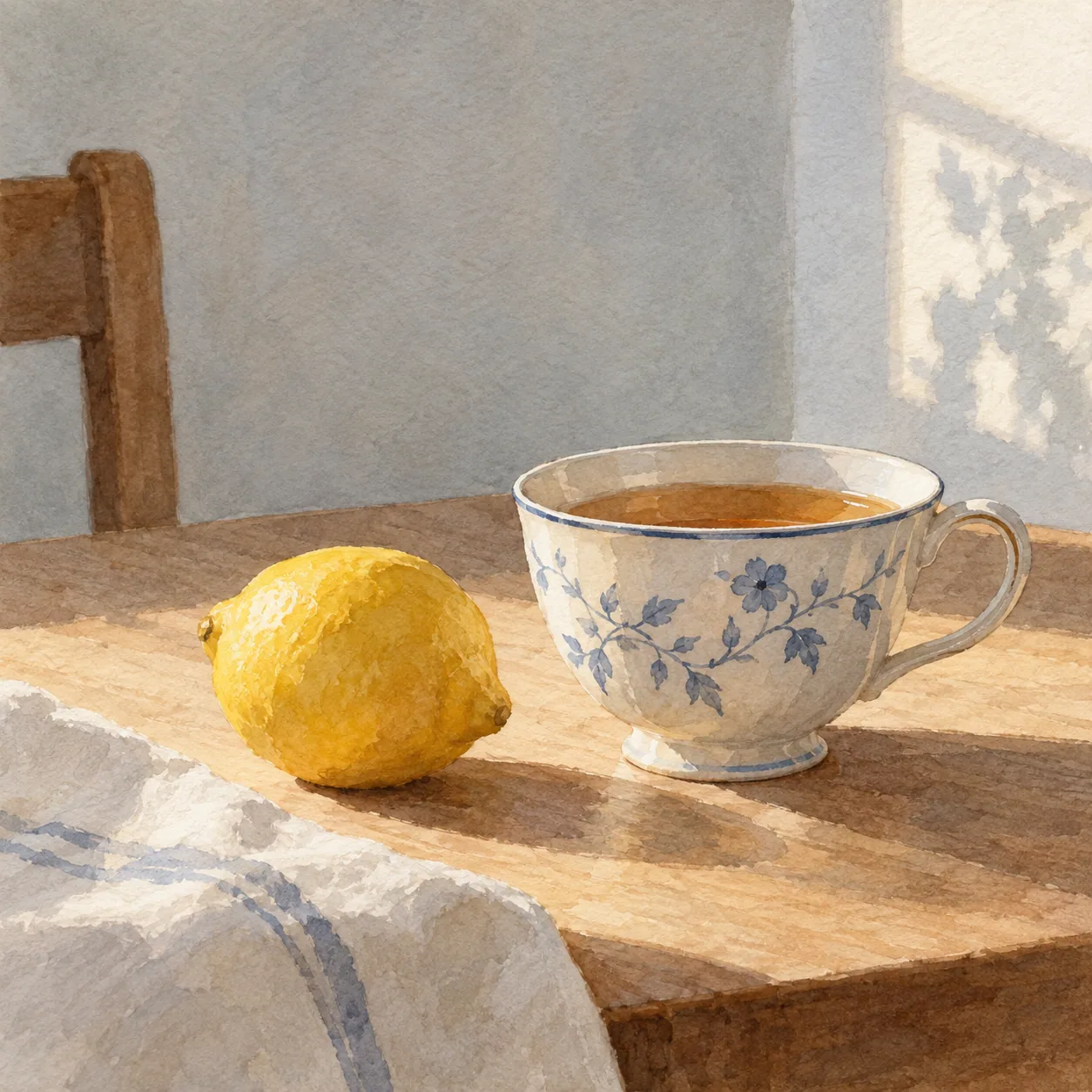 01
01Begin with an object
Subject: a ceramic cup beside a rainy window. Add: one bright reflection, soft morning light, close three-quarter framing, muted watercolor washes.
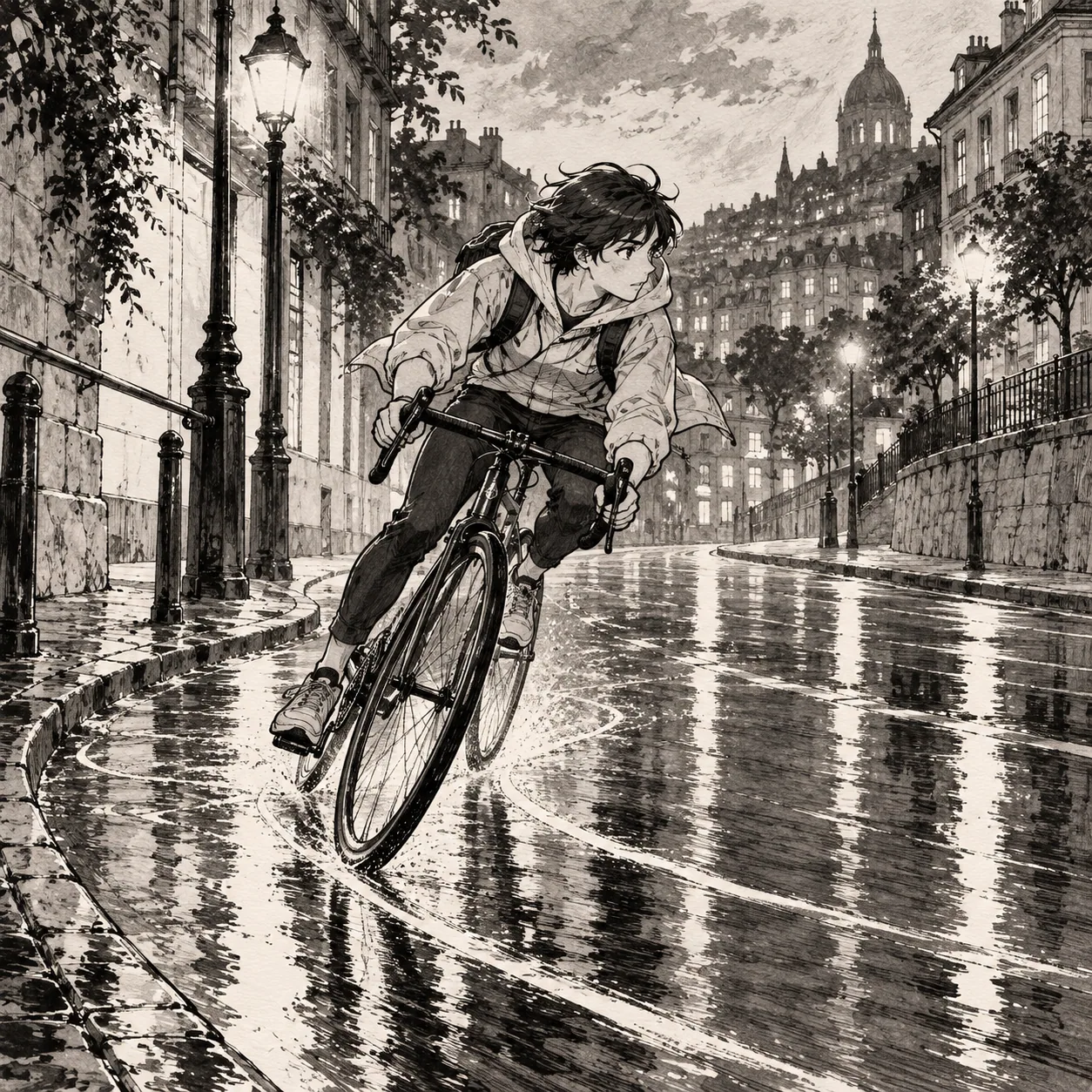 02
02Begin with an action
Subject: a cyclist waiting at an empty crossing. Add: wet pavement, a low viewpoint, charcoal texture, a single headlight cutting through dusk.
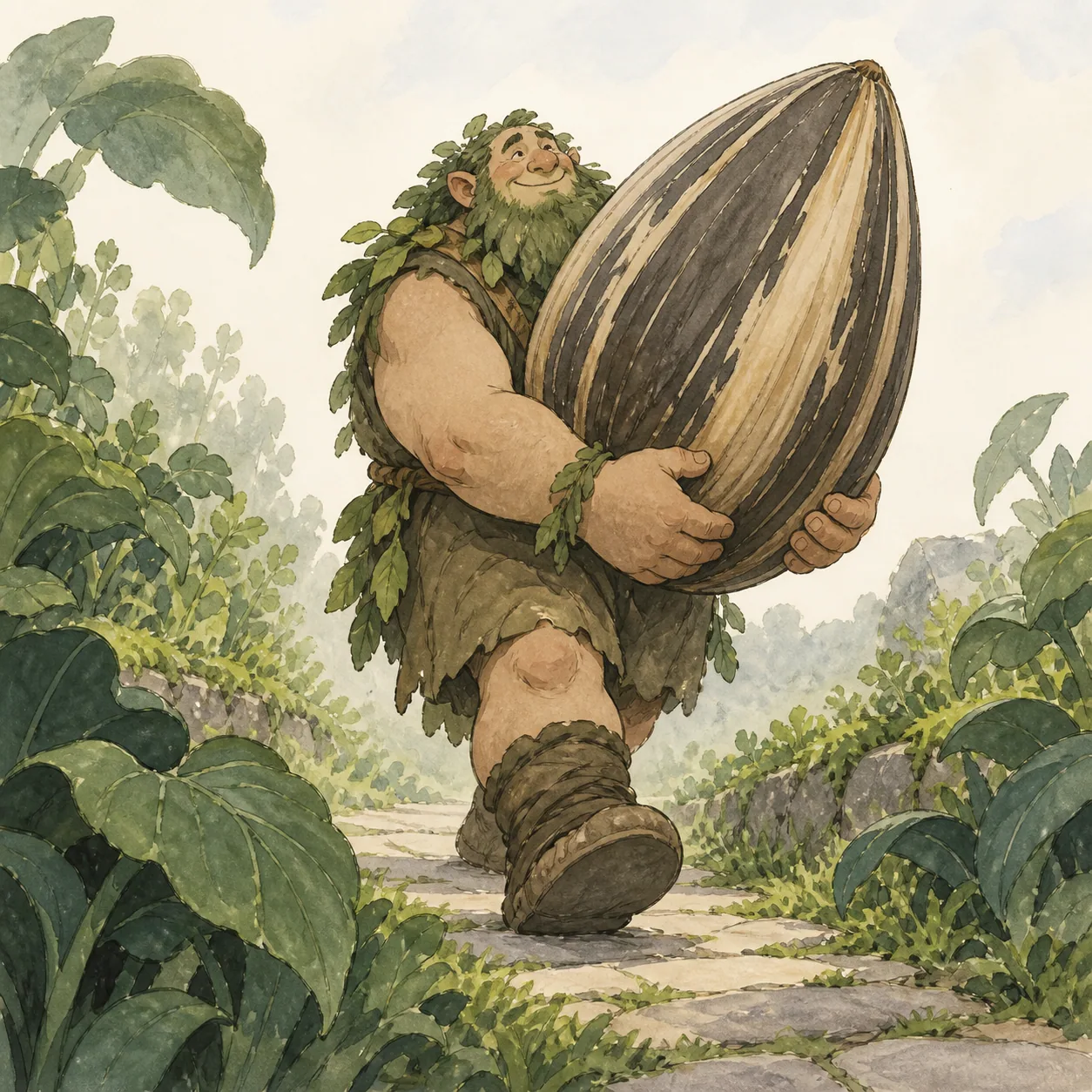 03
03Begin with a relationship
Subject: a tiny house carried by a sleeping bear. Add: clear scale contrast, a wide forest clearing, storybook colored pencil, warm light in the windows.
Guide the image one field at a time
Add the subject first, then give the image a visual direction with details, style, lighting, and framing. Each field answers a different visual question, so you can make a focused change without rebuilding the whole prompt.
Start with a visible subject
Describe the main subject and the action or setting that should appear in the frame. Concrete nouns and visible relationships give an image model more to work with than an abstract instruction such as “make it interesting.”
Keep the first input focused. Add a second object or story clue later if the generated image needs more context, and make sure that addition has a visible relationship to the subject.
Add the visual direction you want
Use the optional fields to name important details or mood, a style or medium, the lighting, and the composition or framing. Each field should answer a different question about the image instead of repeating the same adjective.
Leave a field blank when it is not important. The generated image prompt keeps the subject and the directions you provide together, which makes it easier to see what the model is being asked to prioritize.
Use the prompt with your image model
The output is written as a general image description that can be adapted to the LLM or image generator in your workflow. It describes the visible result rather than pretending that every model interprets one fixed syntax in the same way.
Edit specific words when your chosen model needs a different convention or level of detail. If your workflow has separate settings for aspect ratio, references, or negative prompts, keep those controls where the model expects them.
Refine the generated text
Generate a first version, then edit the wording while keeping the subject stable. Try changing the crop first, then the light or the background, so each revision has a clear purpose.
The best prompt gives your workflow a useful image; it is not necessarily the one with the most adjectives. Remove instructions that compete with the focal point and keep the words that make the image easier to recognize.
Questions about the five fields
Use the fields as a decision aid. You can leave room for the model when a visual detail is not important to your idea.
What should I write in the subject field?
Name the main subject and add what it is doing or where it is. A visible action or setting gives the model structure. Start with one subject; add supporting objects only when they change the scene.
What do the other four fields do?
Details or mood adds specificity, style or medium controls the surface, lighting or atmosphere shapes values and feeling, and composition or framing controls the distance and arrangement of the image.
Can I leave fields blank?
Yes. Blank fields leave that decision open. Fill a field when it answers a question you care about; adding every possible descriptor can make the result less focused.
Which models work with the result?
The output is a general visual description for an LLM or AI image generator. Copy it into your chosen workflow and adjust model-specific syntax, aspect-ratio controls, references, or negative prompts there.
How do I improve a result that feels wrong?
Change one field at a time while keeping the subject stable. If the image is crowded, remove details or simplify the background. If it is flat, change the framing or light before adding more style words.